Thursday, February 28, 2019

S/4 HANA : Settlement Management : Sales Rebates : Tax code via price determination cannot be determined, check Customizing : Message no. WS533, WS026

Issue : Execution of the settlement run to settle a standard rebate Condition Contract type, throws an error message,

1. During Automatic Settlement : Tax code via price determination cannot be determined, check Customizing with Message no. WS533.

2. During Manual Settlement : Enter a tax code Message no. WS026


Cause : This is due to to the configuration of the Settlement Document type and the issue could also occur if the standard document type is copied to create a custom Settlement Document type for specific requirement.

Resolution : Change the field "Handling of Missing Tax Code" filed to "No Error".


Settlement Run : Posting settlement document after configuration change and note that the settlement run was executed with Run Type : "X Check Run" and hence no settlement document number or FI document number has been generated.


Thursday, November 8, 2018

Debug a function module called in background task

The FM is called by using ABAP statement : Call Function <FM name> in Background task and a break-point is not triggered in the foreground during debugging if the break-pint is set inside the FM.

1. Execute TCode SM37 and input the FM.
2. Click Display icon and set up a break point at the Call Function <FM name> in Background task.
3. Inside the debugging screen - Menu - Settings - Change Debugger Profile/Settings - Check the flag for : TRFC (In background Task) Block Sending.


4. Execute SM58, select the tRFC and from menu EDIT -> debug LUW

Tuesday, August 29, 2017

Block Quantity Confirmation with Delivery Blocks at Schedule line

It's a known fact that if you enter the delivery block at header level, the system transfers the desired delivery quantity for all schedule lines in the requirement routine for Availability Check and the confirmed quantity is deleted, example Orders blocked for Credit Checks.

The same function is not available when the delivery block is set at schedule line level. This business scenario can only be achieved via custom development. SAP has provided an Enhancement 'ATP00001' which composes of two Function Exits. The user exit is triggered during order and delivery processing and implement this enhancement via CMOD. Use Function Exit EXIT_SAPLATPC_002, to clear/block the confirmation quantities when the order line item is blocked at schedule line level.

Note: Removal of the delivery block at the schedule line does not automatically confirm the line item quantities, the confirmation of the lines should be handled using the Backorder processing (TCode : V_RA). Please check my earlier blog on Backorder processing

Regards,
[V]

Monday, May 15, 2017

Execute Backorder Processing

I've seen a lot of Q&A session on the backorder processing and rescheduling and would like to discuss the backorder processing in this blog and would write up a follower for rescheduling.

Backorder processing as the name specifies is allocation and confirmation of quantity that has NOT been confirmed to a customer order prior, mainly due to absence of stock. Using Backorder processing, we could also override the quantities confirmed via "Product Allocation".

Rescheduling on the other hand is to remove already confirmed quantities of a customer order and reallocate it to another priority customer, which could also be due to shortage of stock  .

Note: The key configuration necessary for Backorder processing is the “Checking Rule for Updating Backorders”. The checking rule is determined based on the availability check maintained in the Material Master – Sales/General Plant tab per client requirements.
1.      Execute Transaction Code V_RA – Backorder scheduling. Note below that the cumulative confirmed quantity is Zero for both orders.
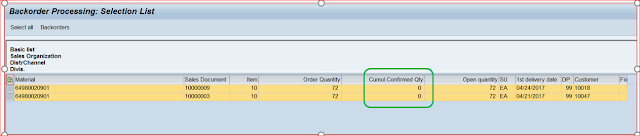


2. Both Orders are open and not blocked


3.  Select the line which want to allocate and confirm quantities. We could also select all the lines by clicking “Select all” button.
4. The selected line will be in blue in the below screen. Select the line and Click “Change Confirmation" at the top.


 5.      Enter the quantity you want to confirm in the ‘Committed” field at the bottom left screen.


Note: Click on the Back icon on the screen and the system will prompt to “Copy the confirmation” and Click the Yes button.
      6. On Clicking the Yes button, the confirmation quantity is copied to the order line. Note the cumulative confirmed qty has been changed to 20.

7.   Open the order and check the schedule lines, and you should notice the order has been for 72 qty and confirmed for 20. The remaining 52 qty will still be on backorder.

Tuesday, February 21, 2017

Sales - Sales org 2 View: Activate Material Groups 1 – 5

TCode OMSR: The Field selection group is assigned to each field
     
TCode OMS9
Enter Field Select Group = 54 and hit Enter
Select “by field Selection” in the Sort Entries at the bottom left corner
Select Radio Optional for TCodes MM01, 02 & 03


Wednesday, October 26, 2016

Attach external documents to SD Documents

Requirement: Attached external files (Word/PDF/xls) to SD related documents like Customers, Sales Orders, Deliveries or Billing Documents.

Pre-requisite: Use TCode SU3 to assign and set parameter ID SD_SWU_ACTIVE to X.


SD_SWU_ACTIVE
Solution: There are two ways to navigate in the Document screen and see screens below to attach files and note that the file can only be attached in the Change Display mode and NOT in Create mode.

Option-1


Option-2


Regards
[V]


Saturday, October 22, 2016

Product Allocation : Product allocation check found changes to the confirmation


Issue :  Product allocation check found changes to the confirmation and the confirmation quantity is 'Zero'.


Solution : This issue occurs if a custom info structure is created with characteristics other than that of the standard product allocation structure S140. In such case, program User_Exit FV45VFZY, Include  USEREXIT_QUOTA_KEY_VALUE to pass custom characteristics from LIS to be filled and pass to internal LIS structure.


I have a Custom info structure created and notice from the above debug screen that the Material group and Material number fields are not filled. With appropriate code in place fill the custom fields to pass data to MCVBAP (LIS Item level info structure). The data from  these structures performs a check against the SXXX structure maintained for product allocation and confirms the quantities.
